Claude Cowork
Use your Standard Compute API key in Claude Desktop. This setup is separate from terminal Claude Code.
For company-managed Microsoft sign-in, IT configures the connection centrally. See Claude Microsoft sign-in; employees do not copy a shared API key into Claude. The instructions below use an API key.
1. Enable Developer Mode
Install Claude Desktop if needed. In the app, choose Help → Troubleshooting → Enable Developer Mode, then restart it.
2. Connect Standard Compute
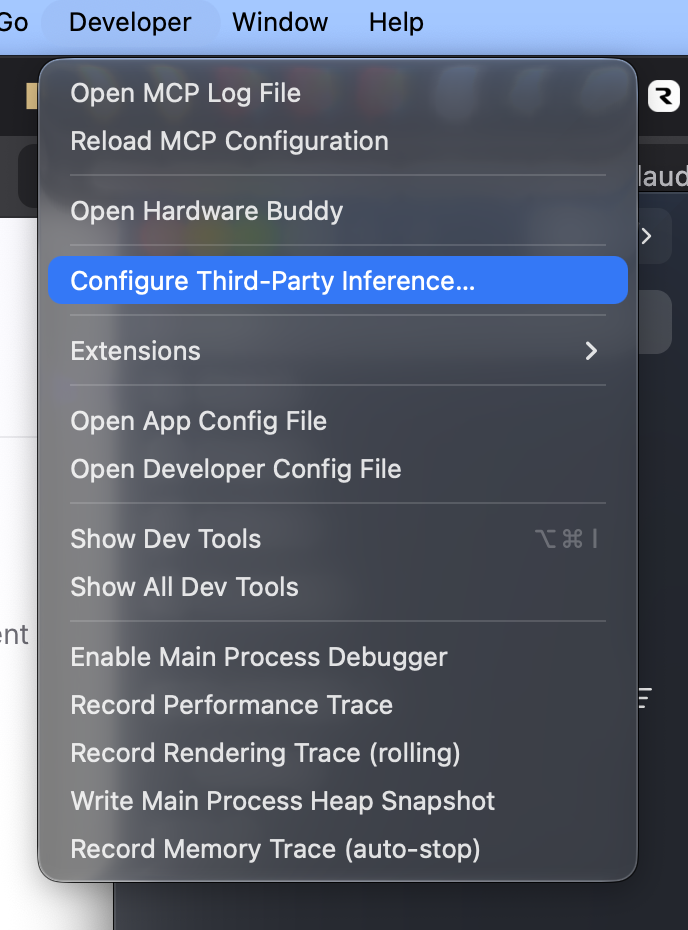
Choose Developer → Configure Third-Party Inference.
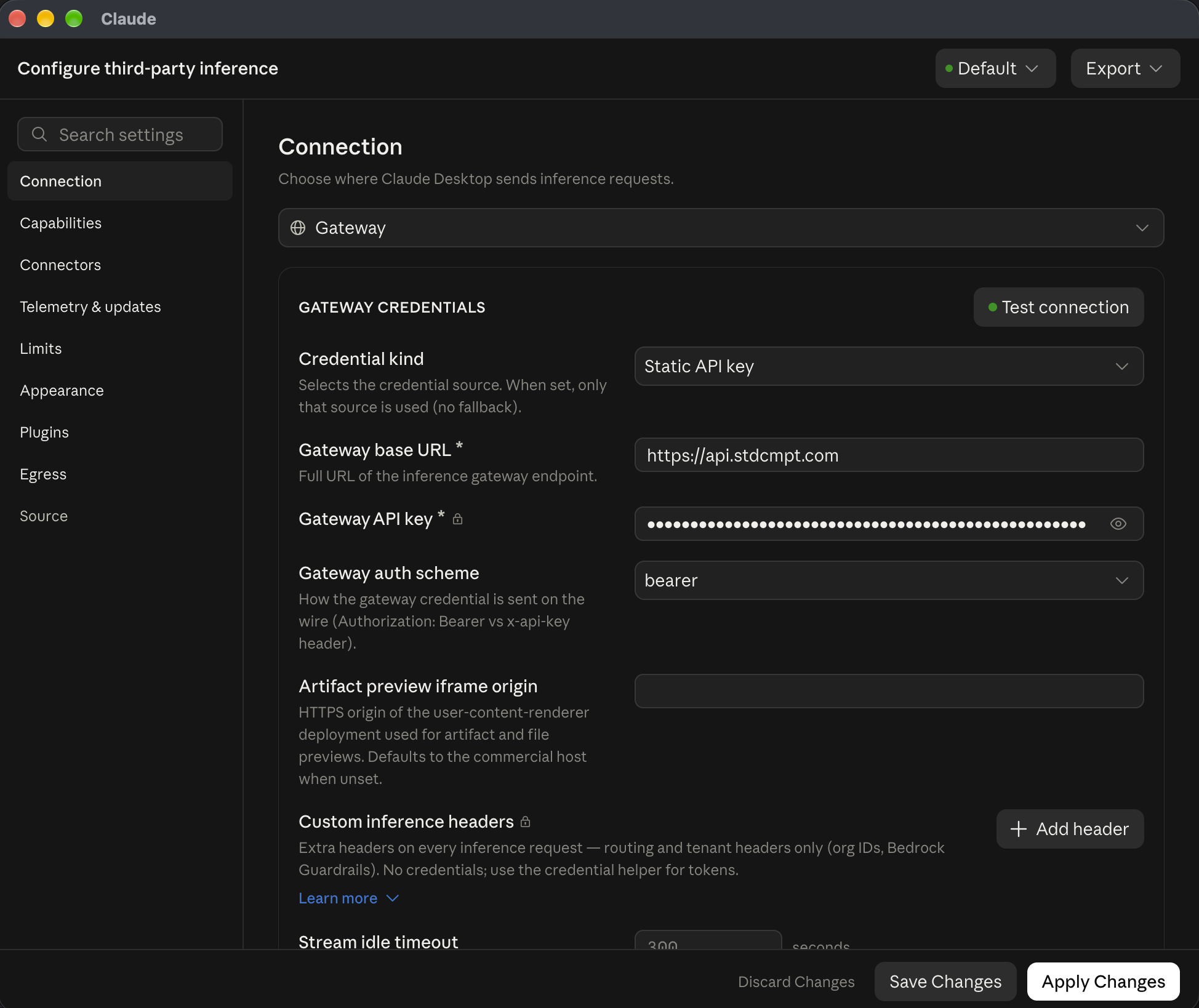
Select Gateway, then enter:
| Setting | Value |
|---|---|
| Credential kind | Static API key |
| Gateway base URL | https://api.stdcmpt.com (no /v1) |
| Gateway API key | Your key from API Keys |
| Gateway auth scheme | Bearer |
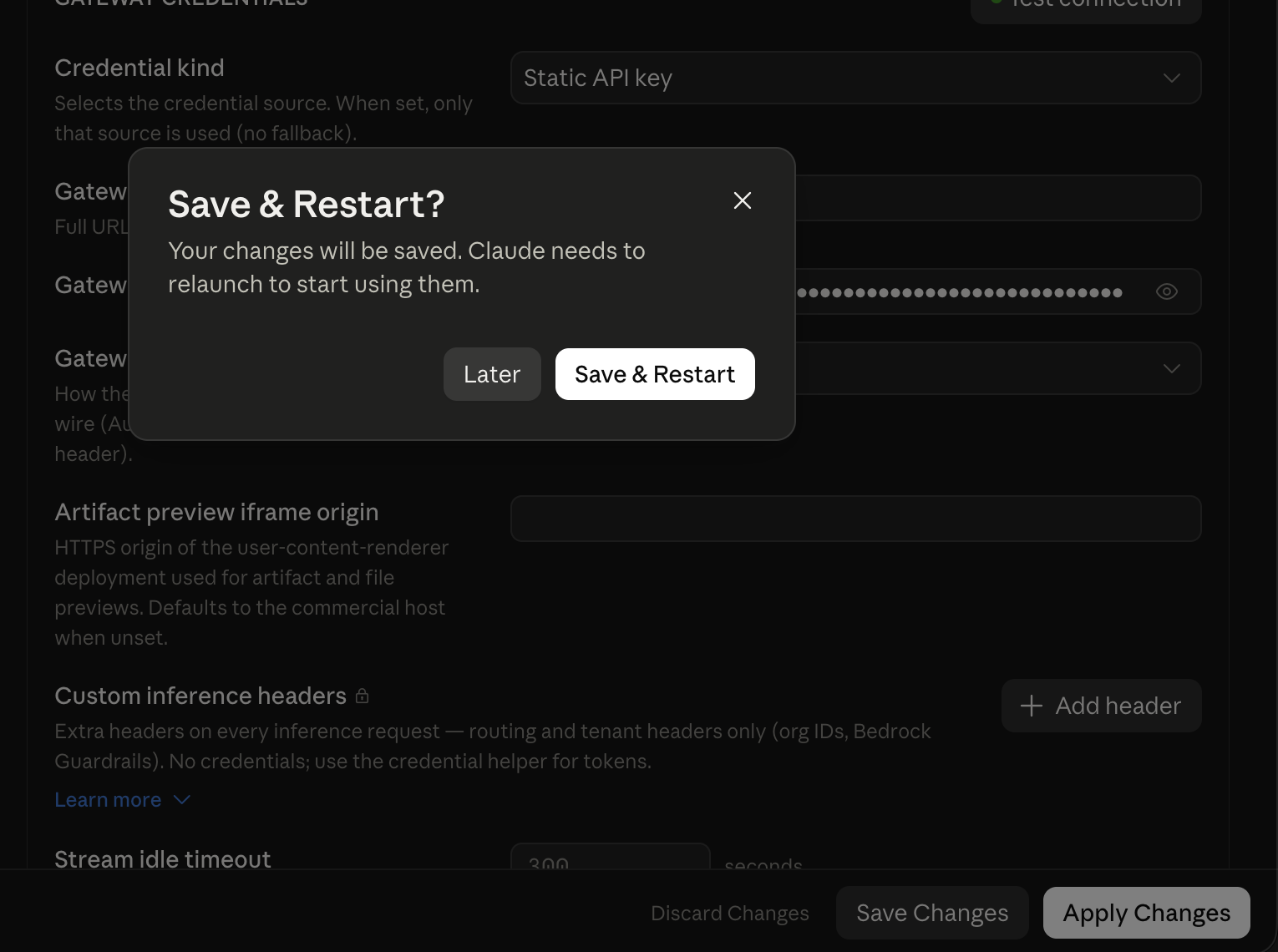
Click Test connection. A green dot beside it indicates success. Then click Apply Changes and confirm Save & Restart.
3. Check the connection
After restart, Claude Desktop should show You’re using Gateway.
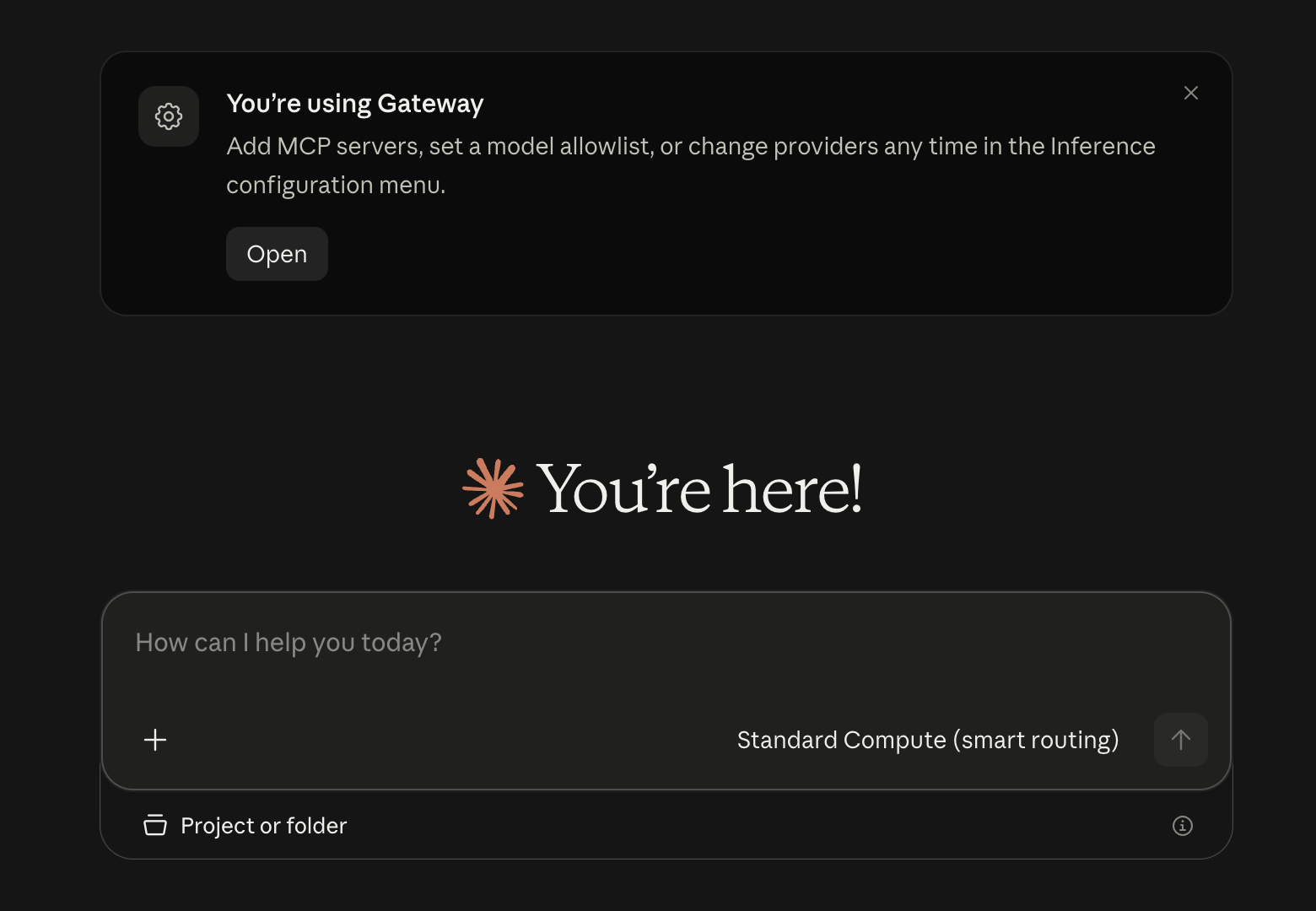
Open Cowork, choose an available Claude model, and send a short prompt. Confirm the request appears in Request Logs. Requests use your monthly budget.
Optional tools
Built-in browser Not yet supported through Standard Compute
Enabling the browser only opens its pane today. Standard Compute does not yet forward Claude's browser tool calls, so Cowork cannot use it to search or read pages automatically. Use the Web Search connector below for automated search.
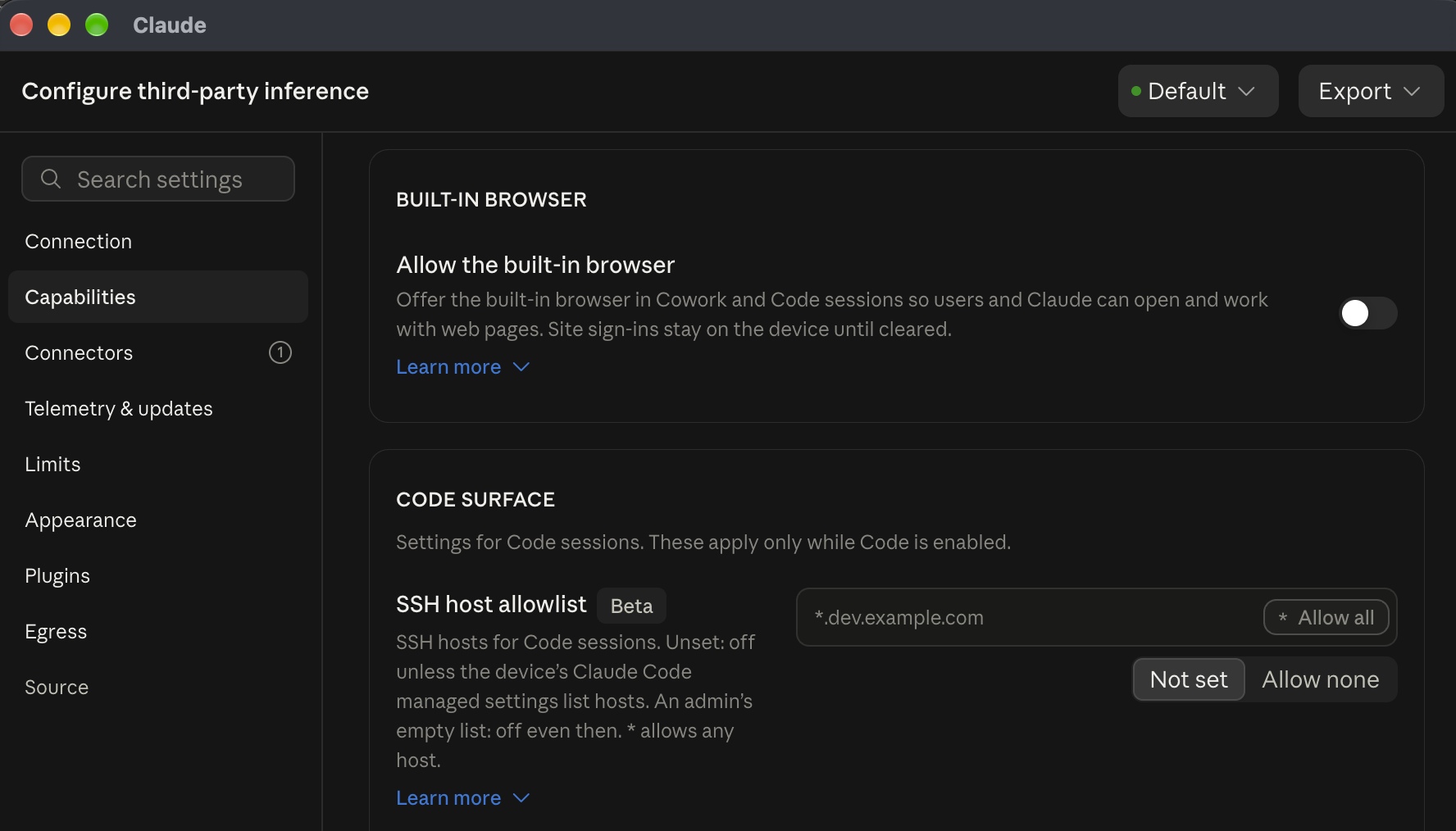
Claude Desktop exposes this setting under Developer → Configure Third-Party Inference → Capabilities. See Anthropic's third-party browser guide for how it works with a compatible gateway.
Enable the Web Search tool Brave, Tavily, or Exa · separate API key
Web search needs a separate search provider and API key. In Claude Desktop, choose Developer → Configure Third-Party Inference, then open Connectors in that window. This is different from Settings → Connectors.
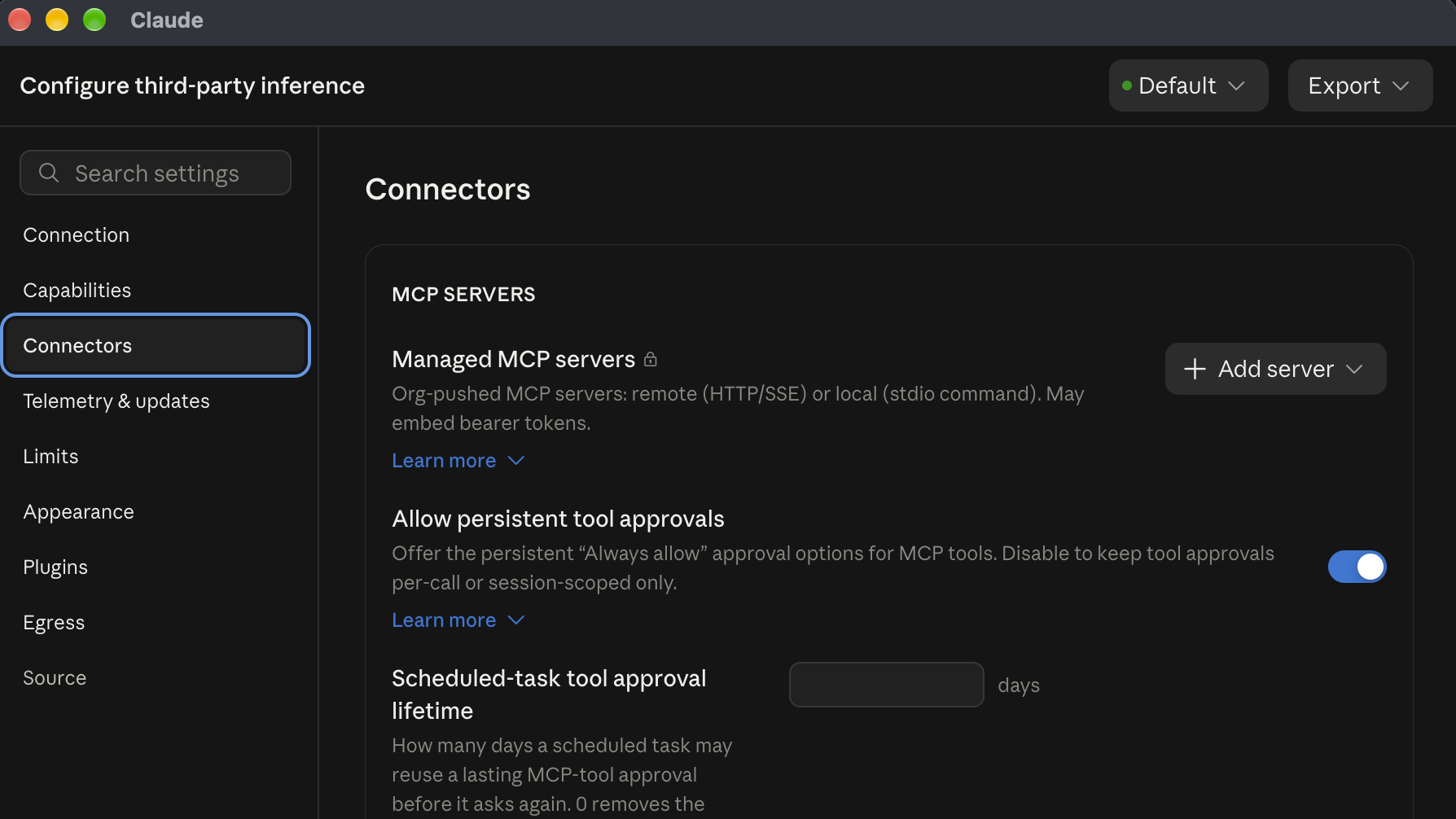
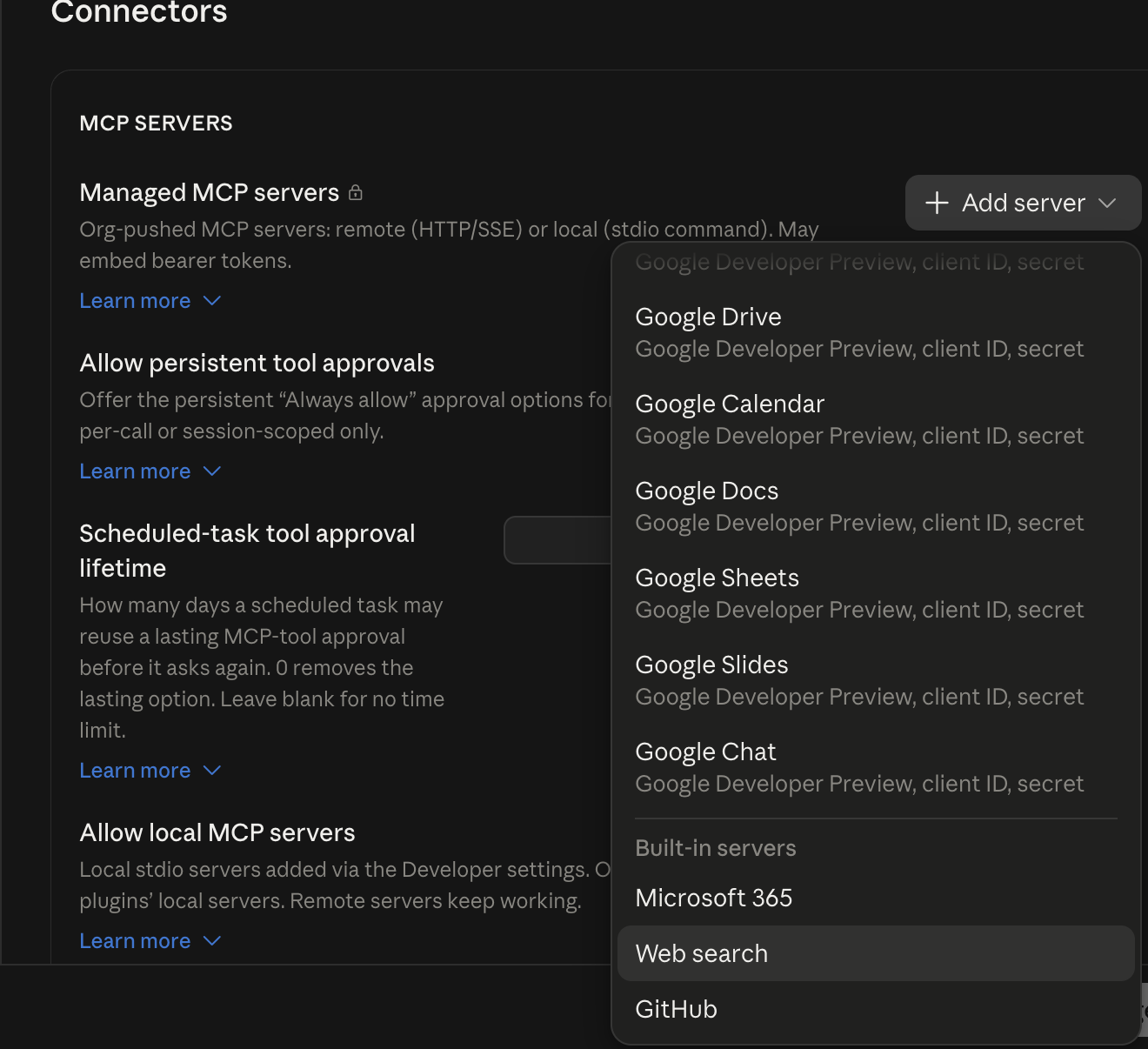
Under Managed MCP servers, choose Add server → Web search.
Choose Brave, Tavily, or Exa as the search provider. Get an API key from that provider and add it under Headers using its required header name. The Standard Compute key is only for inference.
| Provider | Header name | Header value |
|---|---|---|
| Brave | X-Subscription-Token | Your Brave API key |
| Tavily | Authorization | Bearer followed by your Tavily API key |
| Exa | x-api-key | Your Exa API key |
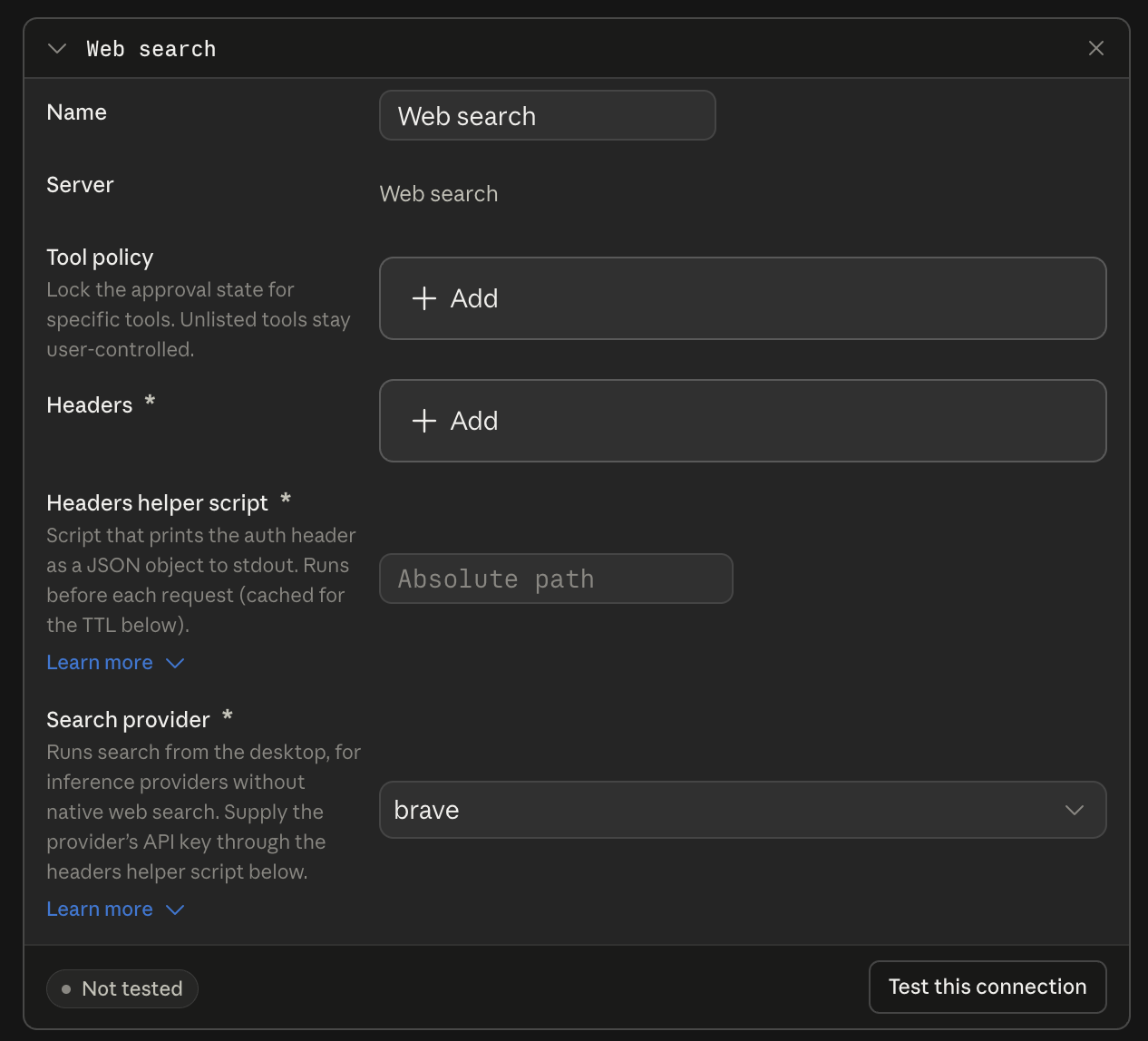
Click Test this connection, then Apply Changes and Save & Restart. The Tool policy can stay unset so tool approval remains under your control. See Anthropic's built-in web search guide for more configuration options.
Review the data flow before enabling search. Search queries go from your device to the search provider you choose, and the query is also visible to the inference provider through the conversation. Your Standard Compute EU region setting does not govern the search provider. Check that provider's location, retention terms, and data processing agreement against your governance policy. Opening full pages with Web Fetch is a separate setting under Egress; leave it restricted to approved hosts.